Server Manager Ascended
The Complete Operations Guide
From zero to a resilient, high-performance ARK: Survival Ascended cluster in v4.21 Open Beta. Learn how to deploy servers, host without router port forwarding via Playit.gg tunnels, sync clusters with 1-click Cross-Ark synchronization, design custom beacon drops and engram overrides with Visual INI editors, organize mods across 3 tiers (Active, Passive, Disabled), protect hosts with native RAM hard-limits, restore player profiles while the server is stopped, and manage everything remotely with SMALink.
Free core + optional Pro. This guide covers both tiers. Compare features and prices. Start a 30-day Pro trial in License Key: no card required, no automatic charge. Each purchased key licenses one cluster; buy multiple keys for different clusters.
1 Installation & First Launch
Server Manager Ascended (SMA) is completely portable. It requires zero installation of external runtimes—the .NET 10 desktop runtime and native components are fully embedded inside the single-file binary.
Recommended Directory Structure
Extract SMA to a dedicated root folder with fast NVMe or SSD storage, such as C:\SMA\ or D:\ARK_Servers\SMA\. Avoid extracting directly onto your desktop or into Program Files where Windows UAC permissions can interfere with SteamCMD auto-downloads.
- Download the latest release ZIP from the Official Download Portal.
- Extract the ZIP archive into your chosen directory (e.g.,
D:\ARK_Servers\SMA\). - Double-click
ServerManagerAscended.exeto launch. - On first startup, SMA automatically creates its secure working store and prepares the local SteamCMD environment in the background.
2 Creating & Importing Servers
SMA gives you two effortless options for managing ARK: Survival Ascended servers:
Option A: Create New Server
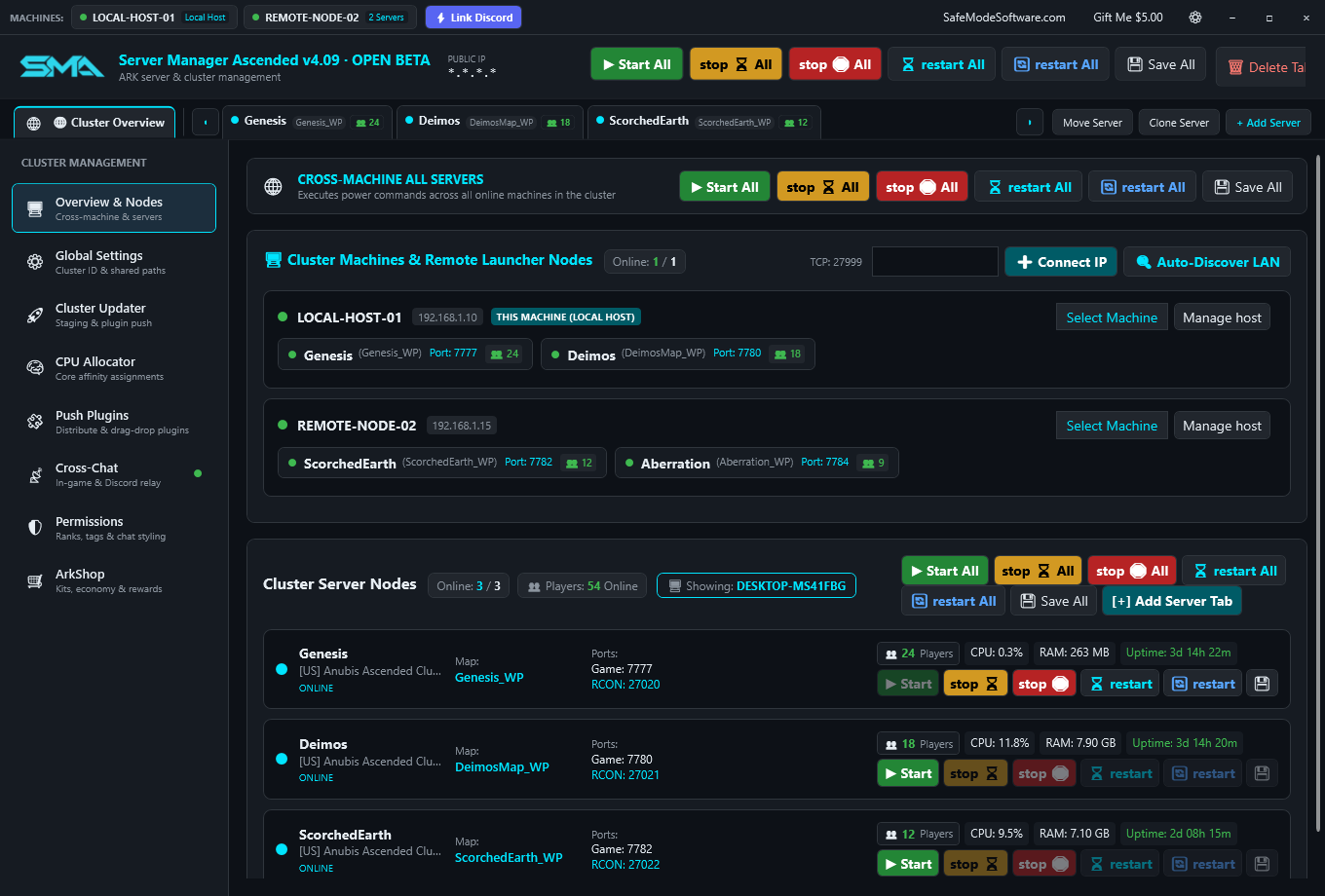
Click the [+ Add Server] button in the ribbon. SMA automatically:
- Allocates unique, conflict-free network ports (Game, Query, RCON).
- Downloads and validates server binaries via SteamCMD.
- Generates secure administrator credentials.
- Applies base cluster and performance settings.
Option B: Import Existing Installation
Already have an ASA server installed? Click Add Server > Use Existing.
- Point SMA to your server's root directory (containing
ShooterGame). - SMA reads your existing
GameUserSettings.iniandGame.iniinstantly without touching your save files or redownloading binaries.
3 Ports, Firewall & Playit.gg Tunnels
Ports and firewall setup are Free. Playit integration requires Pro and a compatible third-party plan.
Network port collisions and restrictive home routers are the leading reasons ASA servers fail to appear in the server browser. SMA eliminates these hurdles with automated preflight socket checks and native zero-config Playit.gg tunnels.
Standard ASA Port Assignments
Each server profile requires three dedicated ports:
- Game Port (UDP): Defaults to
7777(Server 2:7779, Server 3:7781). - Query Port (UDP): Defaults to
27015(Server 2:27017, Server 3:27019). - RCON Port (TCP): Defaults to
27020(Server 2:27022, Server 3:27024).
Before any server boots, SMA tests socket availability. If ports are blocked or conflict with another local program, SMA warns you immediately. Click Repair Firewall Rules inside the launcher to automatically configure Windows Defender Firewall rules for both UDP and TCP traffic with one click.
Playit.gg Zero-Config Tunnels (Bypassing Router Port Forwarding)
Cannot open ports on your ISP router or stuck behind Carrier-Grade NAT (CGNAT)? SMA integrates native Playit.gg zero-config tunnels directly into each server profile tab:
- Under your server tab, navigate to the Networking panel and toggle Enable Playit.gg Tunnel.
- SMA automatically launches the background tunnel client and generates your unique Claim URL.
- Click Claim Tunnel to link the anycast tunnel with your account. Playit maps UDP Game (7777) and Query (27015) traffic over high-speed encrypted anycast tunnels.
- Share your generated tunnel address (e.g.
my-ark.playit.gg:PORT) with friends—they can join directly from the WAN without you touching router port forwarding!
4 Multi-Map Cluster Setup & Cross-Ark Cluster Syncing
Basic cluster setup is Free. Set the shared Cluster ID in Global Settings: all local server profiles inherit it and show a greyed-out field. Pro is disabled if a loaded profile or custom launch argument uses a different ID. One-click settings synchronization requires Pro.
Clustering allows players to transfer their characters, tamed dinosaurs, and inventory across different maps using in-game Obelisks and Supply Drops. In SMA v4.21, Cross-Ark Cluster Syncing makes managing multi-map clusters seamless and drift-free.
- Navigate to the Cluster Overview tab.
- In the Global Cluster Coordination panel, set your Cluster ID (e.g.,
AlphaCluster2026). All servers in the cluster must use this exact ID. - Set the Cluster Shared Directory. This is the shared folder where survivor and item transfer files are stored (e.g.,
D:\ARK_Servers\ClusterStorage\). - Click [Sync Cluster Settings Across All Server Tabs]. SMA pushes these cluster parameters directly into the command lines and INI files of every server profile in your setup!
- 1-Click Multiplier & Rate Replication: Click [Sync Rates to Cluster] in any server profile to instantly replicate experience, taming, harvesting, and breeding rates across all maps belonging to the same cluster ID. Never suffer transfer desyncs or inconsistent rates again.
Cross-Machine Clustering Over LAN
If your cluster maps are hosted on different physical computers in your house or datacenter, set the Cluster Shared Directory to a shared Windows network folder (UNC path like \\HOST-SERVER\ArkClusterShare\) with read/write permissions.
5 Multi-Machine Network & 1-Click Discord Pairing
Running high-population ARK clusters often requires multiple physical computers. SMA features a revolutionary Header Machine Node Selector that lets you switch between different physical hosts instantly from the top caption bar.
1-Click Discord OAuth Machine Linking
Forget complex port forwarding, dynamic DNS, or static IP setups for your server managers. Simply click the ⚡ Link Discord button in the top window header on each machine. Once logged in with your Discord account, all of your host computers are paired through the authenticated SafeMode Cloud Relay automatically!
When multiple machines are linked:
- Click the top-left MACHINES: dropdown to switch control between your main server, secondary box, or gaming PC in real time.
- The Cluster Overview displays the online server counts and player totals across all physical machines in your fleet.
- Issue Start, Stop, and Save commands to any remote node without having to Remote Desktop into the machine.
6 Single-Download 30GB Update & Plugin Distributor
Server updates are Free. Push Plugins distribution requires Pro.
Every ARK: Survival Ascended server installation is roughly 30GB to 40GB. If you run a 5-map cluster, updating every server individually consumes over 150GB of internet download quota and takes hours of server downtime!
SMA solves this permanently with the Single-Download Cluster Update & Plugin Distributor:
- Click [⬇ 1. Download to Staging (1x per machine)]. SMA downloads the latest SteamCMD server update once into local staging storage.
- Gracefully shut down your running servers by clicking [■ Graceful Stop All].
- Click [🔗 2. Distribute Update to Local Servers]. SMA rapidly mirrors the updated binaries across all server folders on your disk in seconds.
- Click [♻ 3. Distribute Plugins to Local Servers]. Synchronize AsaApi plugins (such as Anubis, Permissions, and ArkShop) across all servers, choosing whether to push fresh DLLs or replicate shared configurations.
- Click [▶ Start All Servers]. Your entire cluster is back online with zero wasted bandwidth!
7 Tuning the 455-Setting Engine & Visual INI Editors
Standard settings editing is Free. Visual INI loot-drop and engram editors require Pro.
Say goodbye to manually opening confusing .ini files in Notepad. SMA features a dedicated 455-setting configuration catalog built directly into every server profile tab, alongside specialized Visual INI Editors for supply crate loot drop beacons and engram overrides.
Key Configuration Capabilities:
- Search Everything: Type keywords like Taming, Breeding, Harvest, or Structure into the search box to find relevant settings instantly.
- Category Filtering: Filter by General, Multipliers, Breeding & Taming, Structures, PvP/PvE Rules, and Rates.
- Overrides Only Toggle: Check Overrides only to view just the settings you have customized away from ARK's vanilla defaults.
- Direct Dual-File Sync: SMA knows whether a setting belongs in
GameUserSettings.iniorGame.iniand formats keys with correct engine syntax automatically.
Visual INI Editors (Loot Drop Beacons & Engram Overrides)
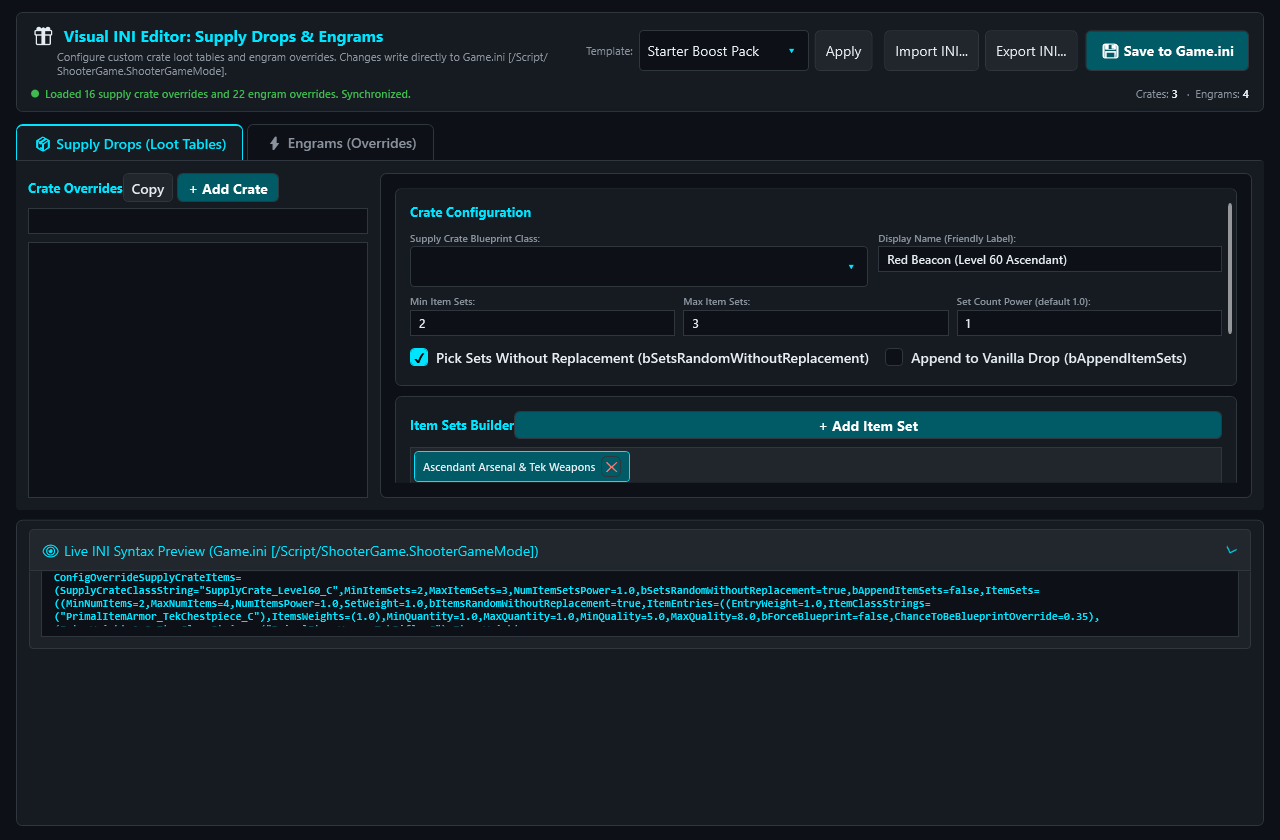
Located under the server tab's Configure > Visual INI Editor menu, these dedicated visual interfaces eliminate syntax errors when customizing core game tables:
- Visual Beacon Loot Drop Editor: Visually configure Supply Crate tables (White, Green, Blue, Purple, Yellow, Red, Cave, and Deep Sea crates). Add custom item blueprints, set drop entry weights, item quantity ranges, blueprint quality chances, and stat multiplier overrides without writing complex
ConfigOverrideSupplyCrateItemSetsstrings by hand. - Visual Engram Override Editor: Search all standard and modded engrams with live filtering. With a single click, hide overpowered items, change required player levels, adjust engram point costs, or auto-unlock engrams on spawn (writing clean
OverrideNamedEngramEntriesdirectly toGame.ini). - Interactive Validation: Visual INI editors parse existing Game.ini blocks on import, flag conflicting or duplicate entry keys, and write back beautifully indented, engine-compliant syntax.
8 3-Tier Mod Management & Custom Maps
ARK: Survival Ascended utilizes CurseForge for cross-platform mods. SMA introduces an industry-first 3-Tier Mod Management Architecture alongside a native CurseForge Mod Browser that lets you discover, install, update, and organize mods with full visual thumbnails.
The 3-Tier Mod Architecture Explained
Unlike simple mod lists that only allow installing or deleting, SMA separates your mod library into three distinct operational tiers:
- 1. Active Mods: Mods currently injected into the server launch arguments (e.g.
-mods=927131,930472). These are loaded by the server upon startup. - 2. Passive Mods: Mods that have been downloaded and cached in local disk staging, but are excluded from active command-line parameters. You can promote a Passive Mod to Active with one click for weekend events, mod testing, or seasonal rotations without waiting on re-downloads.
- 3. Disabled Mods: Archived mods that are completely ignored by the server engine. Keeps your workspace clean while preserving mod metadata and configuration files.
- Open your server tab and click the Mods & Maps sub-navigation tab.
- Enter your free CurseForge API key in Settings (or browse the integrated SafeMode curated mod catalog).
- Search for popular mods such as Automated Ark, Super Spyglass Plus, or Dino Depot.
- Click Install Mod. SMA automatically places the mod into your Active Mods list and injects the Mod ID into the server's
-mods=launch parameter. - 1-Click Tier Switching: Use the tier control buttons to promote or demote mods between Active, Passive, and Disabled tiers instantly.
- Custom Map Mods: When selecting a custom map (such as Svartalfheim or Astraeos), SMA automatically sets both the map launch command and the required map mod argument.
9 Pro Cross-Server Chat Hub & Discord Bot
Cross-chat and the Discord relay require Pro.
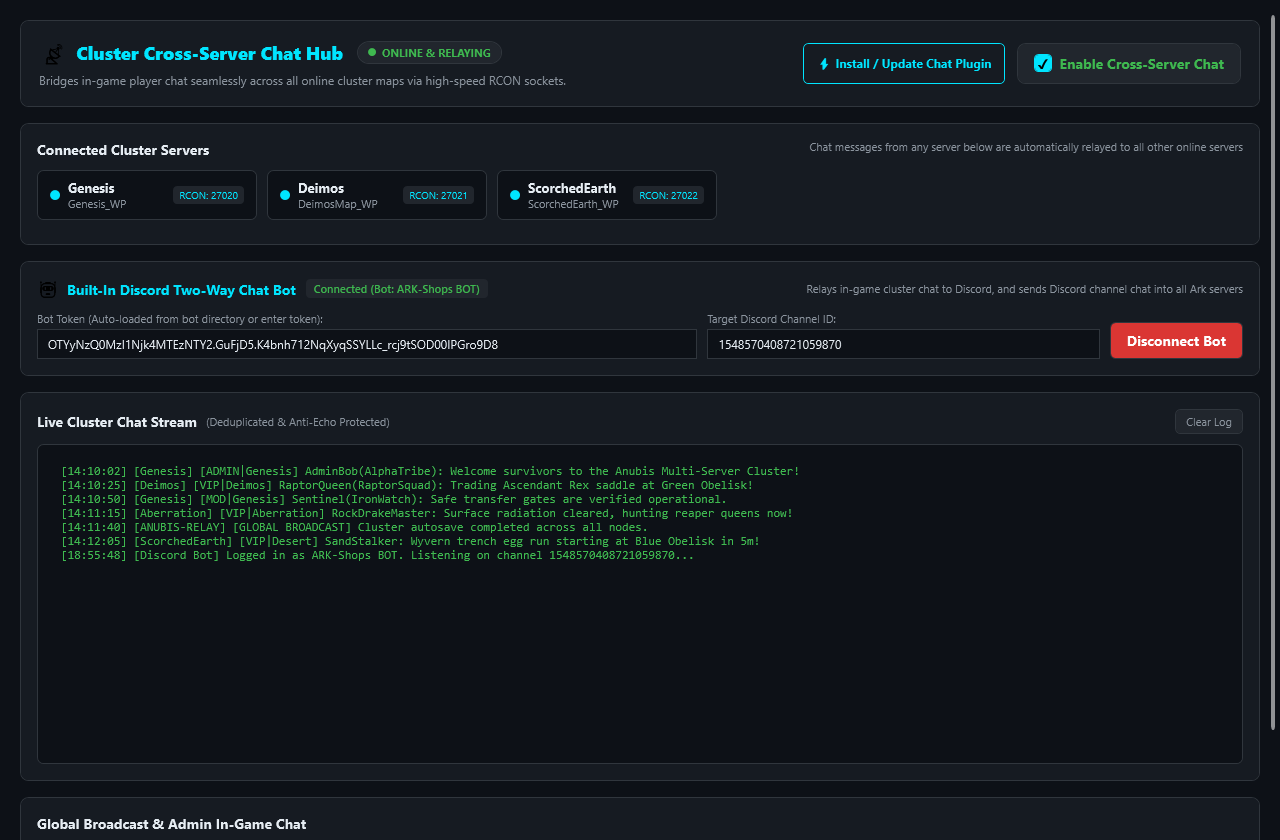
Never leave your community feeling isolated on separate maps. SMA Pro includes a Cross-Cluster Chat Hub that relays in-game player chat seamlessly across all online servers without requiring any third-party paid chat licenses.
Setting Up Cross-Chat:
- Go to the 📡 Cross-Chat ribbon tab.
- Check Enable Cross-Server Chat.
- Click ⚡ Install / Update Chat Plugin to deploy the native SmaTools plugin for dual-color rendering in the ASA chat box.
- Two-Way Discord Bot Bridge: Enter your Discord Bot Token and Channel ID, then click Connect Discord Bot. Player chat in-game will appear in Discord, and messages sent in your Discord channel will broadcast into the game in real time!
- Quick Macros: Use the one-click macro buttons to broadcast restart warnings, event announcements, or trigger cluster world saves with a single tap.
10 Remote Cluster Management with SMALink
Basic remote controls are Free; Pro operations still require Pro on the host.
Away from your host computer? You can monitor and control your entire ARK server cluster from any smartphone, tablet, or web browser using the SMALink Web Companion.
How to Connect to SMALink
- In the launcher, go to Settings > Paths & Remote Control and enable SMALink Cloud Relay.
- Open safemodesoftware.com/SMALink on your phone or remote browser.
- Sign in with your linked account.
- Your live dashboard shows active servers, real-time player counts, CPU and RAM utilization, and console logs.
- Send Start, Stop, Restart, and RCON broadcast commands anywhere in the world!
11 Watchdog, RAM Limits & Player Profile Restores
Watchdog automation, RAM limits, backup creation and player profile restore require Pro. Existing world archive restoration remains Free.
Keeping your ARK server online 24/7 requires proactive resource containment, health monitoring, and hot rollback mechanisms.
Automated Watchdog
SMA monitors server processes in real time. If a server process terminates unexpectedly due to an Unreal Engine crash or out-of-memory error, the watchdog:
- Captures crash diagnostics from
ShooterGame.log. - Writes an audit entry to the launcher console.
- Automatically restarts the server within 5 seconds.
Scheduled World Backups
Under each server profile, enable Auto Backups to have SMA periodically snapshot your world save files into compressed ZIP archives.
- Set interval (e.g., every 60 minutes).
- Set retention limits to prevent disk exhaustion.
- One-click restore directly from the backup list.
Native RAM Hard-Limits (Windows Job Object Kernel Caps)
ARK server instances are notorious for runaway memory leaks caused by bloated mods or excessive entity counts. SMA implements Native RAM Hard-Limits using Windows Job Object kernel ceilings:
- In the server tab under Hardware & Limits, configure Max RAM (GB) (e.g.,
16 GB). - The Windows kernel strictly caps the process's commit charge to your configured ceiling. If an instance exceeds the threshold, the OS constrains the rogue process without crashing the host operating system or starving other cluster nodes.
Manual and automatic backup creation, scheduled jobs, automatic restarts, and automatic maintenance require SMA Pro. Existing archive recovery and protective copies made before maintenance remain available without Pro. Saved automation settings pause when Pro expires.
Player Profile Restores (Stopped-Server Recovery)
To recover a survivor, select an extracted .arkprofile backup. Stop the server first so its in-memory state cannot overwrite the restored file.
- SMA's Player Profile Restores require the server to be stopped and free of other maintenance operations.
- SMA atomically replaces the selected
.arkprofileand retains the current player file as a recovery copy. Use Backup & Restore for archive-based recovery. - Start the server after restoration and verify the survivor in game. Live restoration while players are online is not supported.
SQL database tools — Pro
Open Cluster Overview → SQL database. Select the host and refresh discovery before installing: SMA checks local ports and connected updated hosts for MySQL-compatible servers. Detection does not confirm credentials or grant permission to use another host. If a suitable database already exists, use its connection details instead of installing another copy. For a new managed MariaDB instance, select the plugin categories to configure; SMA writes supported plugin connection settings locally. Stop affected game servers before changing their plugin configuration.
12 FAQ & Troubleshooting
Q: How do Playit.gg tunnels work without router port forwarding?
Playit.gg establishes an outbound encrypted UDP tunnel between your host machine and anycast data routing servers. Players connect to your public anycast tunnel address, bypassing router NAT, ISP port blocks, and CGNAT entirely with zero port forwarding required.
Q: What is the difference between Active, Passive, and Disabled mods?
Active mods are included in the server launch arguments (-mods=) and run when the server boots. Passive mods are stored locally in cache for instant testing or events, but omitted from launch parameters. Disabled mods are archived and ignored.
Q: Why should I configure Native RAM Hard-Limits?
ASA servers can consume unbounded host memory over time. Setting a Native RAM Hard-Limit via Windows Job Objects prevents memory leak spikes from taking down your physical host server or starving adjacent cluster nodes.
Q: Can I restore a player character with Player Profile Restores while players are online?
No. Stop the server before restoring a survivor. Kicking one player does not guarantee that the running game will release their saved state; it can overwrite a replacement file.
Q: Why does my server not appear in the in-game Unofficial server list?
Ensure that your router's port forwarding rules are active for the Game Port (UDP 7777) and Query Port (UDP 27015), or enable Playit.gg zero-config tunnels. Also verify in the launcher that Use BattlEye matches your player client preference, and check Show Player Servers in the ASA in-game filter.
Q: How do I assign specific CPU cores to each server instance?
In the Cluster Overview tab, find the CPU Allocation panel. Select your machine and server profile, click the individual CPU core buttons (supporting up to 64 cores), and click Apply & save. The process affinity mask is applied immediately.
Q: What is Free and what needs Pro?
The core launcher is free. Cross-chat, Permissions and ArkShop editors, SQL tools, Push Plugins, Playit integration, Visual INI loot/engram editors, cluster sync, staging, RAM limits, player profile restore, backup creation, automations and schedules require Pro. See the full comparison and prices. Try all Pro features for 30 days, no card required, from License Key in the launcher. One paid key licenses one Cluster ID.